Changelog
Every version of UpscaleGTA and what changed. New versions are offered inside the app, which shows what's new the first time it opens after an update.
1.0.10 ·
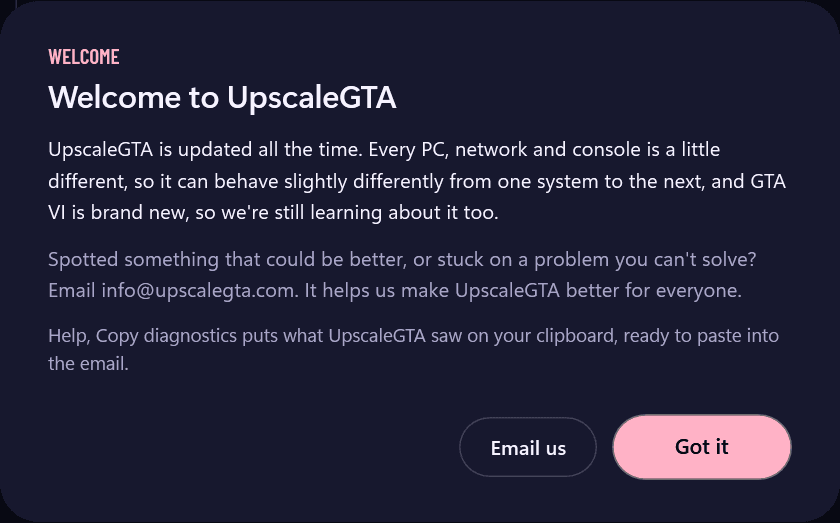
- A welcome for new users. The first time UpscaleGTA opens after a new install, it says hello and asks for your ideas: UpscaleGTA is updated all the time, every PC, network and console is a little different, and GTA VI is brand new, so if something could be better or you're stuck on a problem, email info@upscalegta.com. Email us opens your mail app, and Help, Copy diagnostics adds what UpscaleGTA saw. People who update get What's new instead.
- "New update available" until you've seen it. When a new version is out, a pink "New update available" button in the top bar blinks until you click it once. It then shows what the new version changes, with its pictures, and Update now or Later. After that it stays as a quiet "Update to" button until you update, and the next version blinks again. It holds still while a stream plays, and when Windows' animations are turned off.

- Setup carries on when a file is busy for a moment. An update or a new setup no longer stops when a file is in use for a moment, such as a font setup's own window was drawing with, or a file a virus scanner is reading: it tries again for up to ten seconds.
1.0.9 ·
- What's new, right after an update. The first time UpscaleGTA opens after an update, it shows what changed since the version you had, with a picture where one helps. Help, What's new, shows it again, and the same notes are on upscalegta.com/changelog.
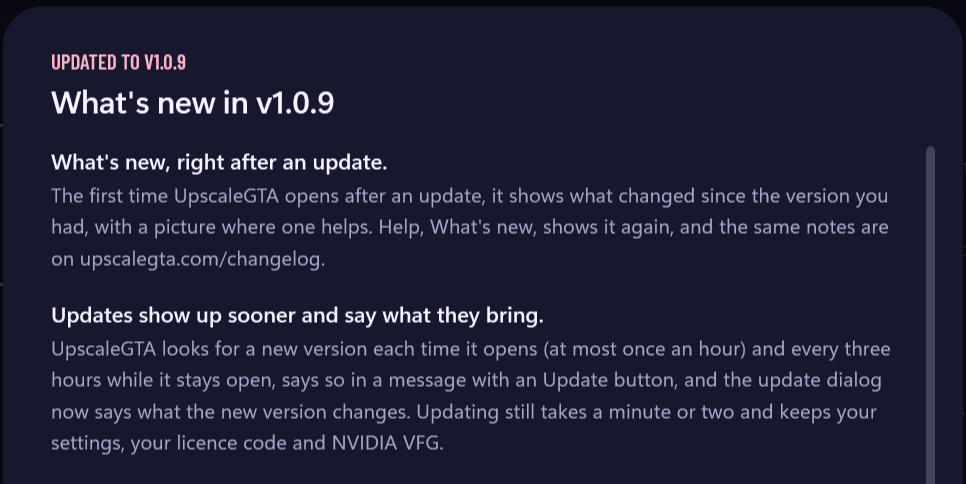
- Updates show up sooner and say what they bring. UpscaleGTA looks for a new version each time it opens (at most once an hour) and every three hours while it stays open, says so in a message with an Update button, and the update dialog now says what the new version changes. Updating still takes a minute or two and keeps your settings, your licence code and NVIDIA VFG.
- Your licence code fills itself in. Copied it from the thanks page or the order email? Setup and the licence dialog find it on the clipboard and fill it in. Pasting the whole line from the email, words and quotes included, works too, a genuine code says whose it is as soon as it's pasted, and Enter saves it.
- Start brings a minimised stream back. With the Xbox app or PS Remote Play minimised, Start now restores its window and starts, instead of asking you to do it first. When the app isn't open, the Play page offers to open it.
- Clearer messages when the video window stops. The common causes now say what to do: the graphics card's memory full (close other games, or pick 60 fps), a missing part (Repair, on the Help page), the graphics driver resetting, or Windows closing a window that stopped responding. The details are still in Copy diagnostics.
- Setup closes UpscaleGTA for you. Running a new setup while UpscaleGTA was open stopped with "Couldn't write UpscaleGTA.exe". Setup now offers to close it and carries on, and uninstalling from Windows' settings while it runs does the same instead of leaving files behind.
- Two settings GTA VI doesn't need moved to Advanced. Even out 40-60 fps (for other games' unlocked 40-60 fps modes) and Game frame rate (a fallback for another 30 fps game that Auto misreads) are now under Advanced, each with a line saying GTA VI doesn't need it. GTA VI runs at 30 fps, which Auto reads right since 1.0.8. Both go back to their defaults once with this update, as they were often changed while chasing a problem 1.0.8 fixed.
1.0.8 ·
- No more freezes and closes when going in and out of fullscreen. With NVIDIA RTX VSR picked, every change in the picture's size (fullscreen on or off, and in fullscreen every mouse move, when the app's own window shows through for a moment) made NVIDIA's model load again: about 3 seconds with the video stopped each time. Two in a row and Windows called UpscaleGTA's window not responding and closed it. RTX VSR now keeps one size, the whole monitor's, so fullscreen switches at once.
- No tear line low on the screen in fullscreen. In fullscreen Windows hands UpscaleGTA's picture straight to the display, and with VSync off a frame made just before a refresh tore near the bottom. With Frame pacing locked to the display every frame now waits for the refresh it was made for, which costs no delay, and in fullscreen frames are made up to 8 ms later, closer to their refresh.
- The game's frame rate reads right. A still scene (a menu, the map, standing still) made the app's stream send only its encoder's noise, which could be read as new frames at random, so a 30 fps game showed "game 40-60" and Even out 40-60 fps switched itself on and off. Changes too small to see no longer count, and a new frame within 20 ms of the last is the app's repeat of it. On 40 s of a recorded GTA VI stream, 98-99% of the game's frames are now seen every other stream frame.
- Game frame rate 30 fps works with the new frame pacing. It used to force every other refresh to be new, which went out of step whenever a frame came a little late. It now only rules out a second new frame within 20 ms, and keeps Even out 40-60 fps off.
- Sharpest picture in fullscreen. In fullscreen over the Xbox app or PS Remote Play, the app's window behind the picture is set to the stream's own 1920x1080, so every pixel of the stream is captured as it is instead of being enlarged by the app and shrunk again. It goes back to its place when fullscreen ends (Settings, Display).
- A crash now leaves its traces in the log, so a rare one can be found and fixed.
1.0.7 ·
- Smoother frame generation with the Xbox app, PS Remote Play and other app windows. UpscaleGTA used to put the app's frames on a 60 Hz beat of its own. The app's frames don't come that evenly (Windows passes them on when it redraws the desktop), so two often fell into one beat and none into the next: in a real GTA VI session only half of the in-between frames a 30 fps game needs were made, and motion stepped now and then. On a 60 Hz display the frames are now made for the display's own refreshes, every frame the app sends is looked at in turn, and a frame that comes a little early waits for its turn, so each one gets its in-between frame. Played back from a recorded GTA VI stream: 27 in-between frames a second instead of 22 (30 is perfect), and two frames on consecutive refreshes in 0.3% of refreshes instead of 19%, with the same delay. Settings, Smoothness, Frame pacing switches between this (Locked to the display) and the old way (Classic), live, to compare.
- A 30 fps game is no longer read as "about 42 fps". UpscaleGTA's own picture, on top of the app's window, made Windows redraw that spot each time it changed, and those copies of the same picture taught the repeat check that a repeat changes nothing at all. The app's own repeats, which always change a little, then counted as new frames, and Even out 40-60 fps kept switching on and off. Copies of the same picture are now left out.
- The delay figure counts until the frame is on screen. With the app-window source on a 60 Hz display, the stats pill's "+ms" now runs until the refresh that shows the frame, not until it's handed to Windows, so it reads a few milliseconds higher for the same delay.
1.0.6 ·
- RTX VSR that keeps running. Through the NVIDIA driver, RTX VSR depended on NVIDIA's Super Resolution setting and kept switching itself off and on for UpscaleGTA's window, so the picture fell back to AMD FSR 1 and both UpscaleGTA and the NVIDIA App called it inactive. Where NVIDIA VFG is set up, RTX VSR now comes from the same NVIDIA Video Effects package and works on the frames themselves: no NVIDIA App setting, nothing to switch off. Pick its quality (Low to Ultra) on the row under Upscaler. Without that package it still goes through the driver, as before.
1.0.5 ·
- The Xbox app's buttons work again in fullscreen. Move the mouse and, for two seconds, UpscaleGTA's picture steps back to just the stream, at its real place on screen, so the Xbox app's back arrow and its menus can be seen and clicked where they are. When the mouse rests, the picture fills the screen again.
- NVIDIA VFG stays available after an update. Opening UpscaleGTA while an update was still installing left the engine without NVIDIA VFG's folder, so it played with RIFE and the Settings page offered VFG as not set up. The folder is now handed over in every case.
1.0.4 ·
- No more black bars from the Xbox app or PS Remote Play. Their window is rarely the stream's 16:9 shape (a maximised window loses some height to the taskbar), so the app shows the stream with black bars beside it, and UpscaleGTA used to capture those bars and squeeze them into its picture. Now only the 16:9 stream itself is captured: no bars, and nothing stretched. With UpscaleGTA in fullscreen (Ctrl+Alt+F) on a 16:9 monitor the picture fills it.
- Minimising the video window no longer closes it. Drawing into a minimised window crashed the engine; it now waits, keeps answering Windows and your keys, and carries on when you bring it back.
- If the video window ever freezes, the log says where. A stall of more than six seconds now writes where every part of the engine was to the session log, even when a graphics driver call is the one stuck, so Copy diagnostics shows what happened.
1.0.3 ·
- NVIDIA RTX Video Super Resolution on every RTX card. UpscaleGTA now asks your NVIDIA graphics driver to enlarge the picture with RTX VSR, the way Chrome, Edge and VLC use it, so nothing extra is downloaded and NVIDIA's RTX Video SDK part that 1.0.1 needed is no longer needed. Pick it under Settings, Picture, Upscaler. It needs an RTX graphics card, NVIDIA driver 545.84 or newer, and Super Resolution turned on in the NVIDIA App (System, Video, RTX Video Enhancement) or the NVIDIA Control Panel (Video, Adjust video image settings), where you also pick its quality. It takes about 1 to 5 ms a frame at 1440p, which can cost in-between frames at 90 and 120 fps.
- It says when it isn't running. The driver gives no sign when Super Resolution is off, so the video window checks that RTX VSR really changes the picture. Until it does, the picture is enlarged with AMD FSR 1, a note in the video window and on the Settings page says where to turn Super Resolution on, and the stats overlay names the upscaler that is really in use.
1.0.2 ·
- The stats overlay is yours to arrange. On the Settings page (Display) and in the video window's menu: put the stats in any corner of the picture, make them small, medium or large, set how solid they look (100% to 25%), and choose exactly which figures they show: frames on screen, the game's frame rate, the added delay, and, in the Detailed style's table, the in-between frame time and the share of extra frames shown. A small preview on the Settings page shows the pill where it will sit. Changes apply straight away while you play. The defaults keep the look you know: top left, medium, every figure on.
1.0.1 ·
- NVIDIA VFG is back as a second frame generation model, beside RIFE 4.22 lite: NVIDIA's own frame generation, for RTX 40 and 50 series cards. Set it up on the Settings page, under Frame generation model: it shows NVIDIA's licence first, and only after you accept it downloads NVIDIA's package (about 540 MB) from NVIDIA. Then pick it and choose its quality (Low, Medium, High). Steady HUD works with it too. Find the best settings tells RTX 40 and 50 owners their card can run it, and once it's set up tests it and suggests it if it keeps up. Remove deletes the download again. NVIDIA's licence doesn't allow publishing its speed or quality results, so they stay out of logs and Copy diagnostics; you still see them on this PC.
- NVIDIA RTX Video Super Resolution is back as an upscaler, with its quality setting, on PCs that have NVIDIA's RTX Video SDK part. Where that part isn't there (it isn't included with UpscaleGTA), it isn't offered, so it can't be picked and then fail.
1.0.0 ·
The first release of UpscaleGTA.
- Adds the frames in between to a Remote Play stream, shown at 60, 90 or 120 fps, and scales the picture to your screen with AMD FSR 1.
- Works with the Xbox app, Sony's PS Remote Play app, capture cards and any window that shows a game stream.
- Guided setup for each stream, with checks that show what the app can see.
- Auto-detect, instant replay, the before & after video, the stats overlay, evening out of 40 to 60 fps, window or fullscreen.
- Updates arrive inside the app.