The short answer
Turn on Remote Play on the PS5 (Settings, System, Remote Play), install Sony's free PS Remote Play app on your Windows PC, plug in a DualSense with a USB cable and connect. Use a network cable if you can. The stream is at most 1080p, and GTA VI arrives at its own 30 fps. Once it runs, our app UpscaleGTA can show that 30 at 60, 90 or up to 120 fps.
On the PS5
- SettingsSystemRemote PlayEnable Remote Play on (PlayStation Support: Remote Play on PC and Mac).
- To start a session while the PS5 is in rest mode: SettingsSystemPower SavingFeatures Available in Rest Mode, then turn on Stay Connected to the Internet and Enable Turning on PS5 from Network (PlayStation Support: Remote Play on PC and Mac).
- Connect the PS5 to your router with a network cable if it is anywhere near.
- Before playing GTA VI, install the latest PS5 system update. PlayStation said one was required to play the game at launch (Kotaku, 17 Nov 2026).
On the PC
- Download PS Remote Play for Windows from Sony's Remote Play page (PlayStation Remote Play). It needs Windows 10 or 11 and a 7th-generation Intel Core processor or newer (PlayStation Support: Remote Play on PC and Mac). Get it only from playstation.com.
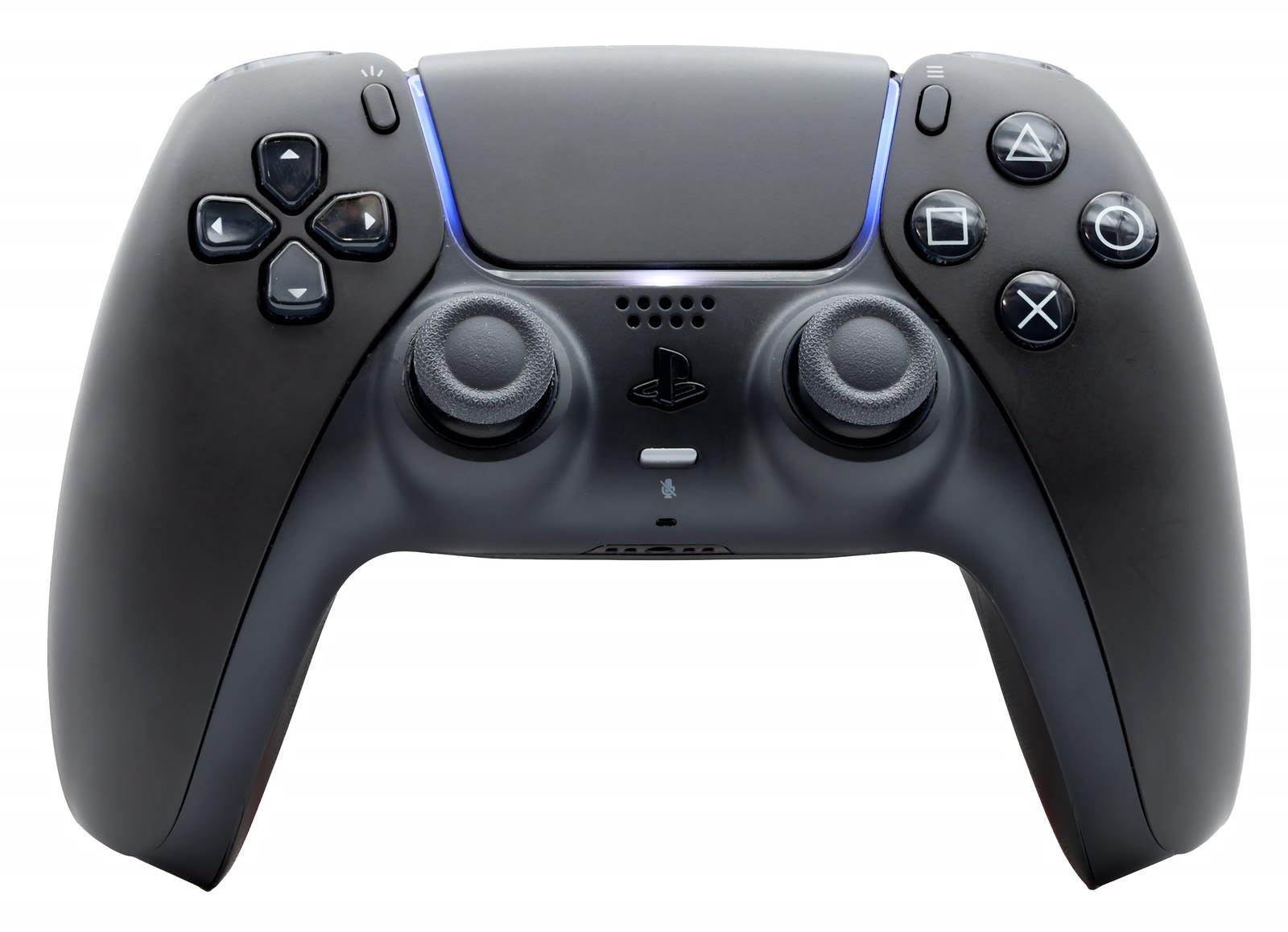
- Connect a DualSense, DualSense Edge or DualShock 4 to the PC with a USB cable (PlayStation Support: Remote Play on PC and Mac).
- Open the app, sign in with the same PlayStation account as on the PS5, and choose PS5.
- The app finds your console and the stream opens in a window. Start GTA VI from there.
Quality settings
Video quality is set in the app's Settings, on the start screen before you connect (PlayStation Support: Remote Play on PC and Mac). Sony's PC page says the options are there but does not list them. In Sony's other Remote Play apps the choices are a resolution and a frame rate of Standard or High. Pick:
- Resolution: the highest offered (1080p is the most a PS5 stream carries).
- Frame rate: High.
If the picture breaks up, step the resolution down one notch before you change anything else. Sony notes that on its other apps the resolution can be adjusted automatically to the network.
What the stream can do
- Resolution and frame rate: up to 1080p and 60 fps, the figures Sony gives for its Portal (PlayStation Blog, 17 Mar 2026). GTA VI renders 30 fps, so the stream carries 30 real frames a second.
- Bandwidth: at least 5 Mbps up and down, 15 Mbps recommended (PlayStation Support: Remote Play on PC and Mac). Sony publishes no bitrate.
- Delay: Sony publishes no figure. GIGA measured about 70 to 80 ms for Remote Play on a good network with a PlayStation Portal and a different game (GIGA, 27 Oct 2026). GTA VI over Remote Play had not been measured as of 19 November 2026.
When it doesn't work
- The app can't find the PS5: check Enable Remote Play, the same account on both, and that the PS5 is on or in rest mode with the two rest-mode options above.
- Blocky picture or stutter: a network cable on both ends, or 5 GHz Wi-Fi close to the router. More fixes.
- The controller does nothing: it must be connected by USB cable on Windows.
- The app closes on sign-in: one Windows 11 user reported this before release and switched to another client; update the app and Windows first (the current app version was 9.5.0 on 19 November 2026).
Adding frame generation
On the PC, software can draw frames between the stream's, so the 30 fps arrives on screen at 60 or more. Our app UpscaleGTA is made for the official Remote Play windows and finds Sony's by itself. Lossless Scaling users reported in 2024 that Sony's app froze or showed duplicated frames when it lost focus (Steam discussion, 2024). Keep the Remote Play window visible and not minimised, whichever tool you use. The options compared.
Prefer a handheld?
The PlayStation Portal does Remote Play only. Its 1080p High Quality mode (Quick Menu, Max Resolution) uses a higher bitrate than standard 1080p (PlayStation Blog, 17 Mar 2026).